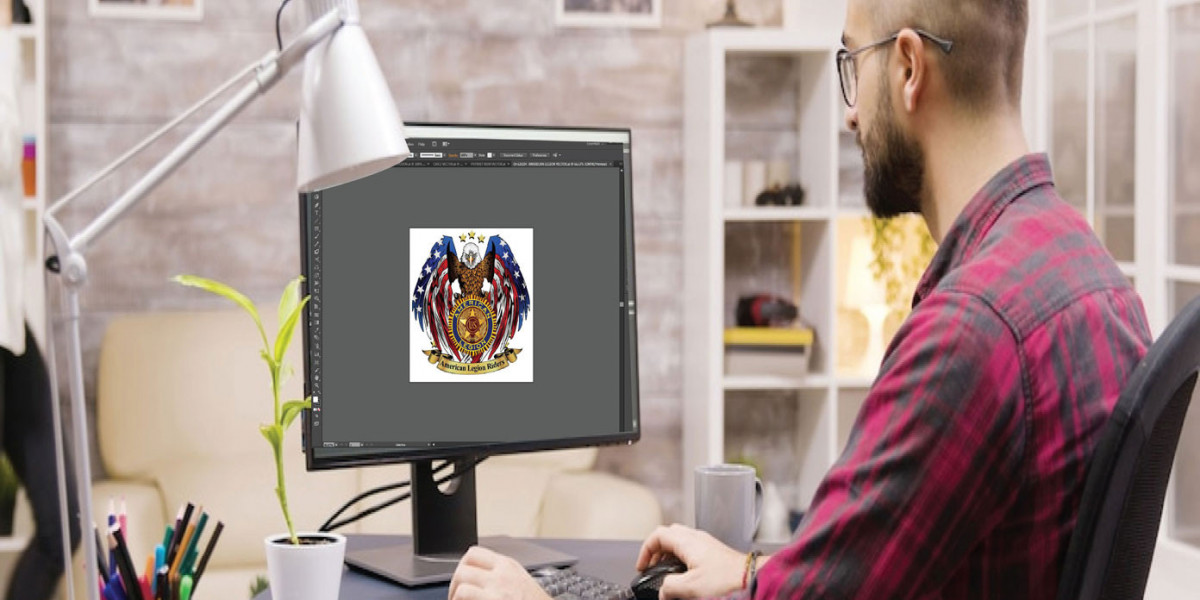

You have a clean, crisp PNG file—a logo, graphic, or piece of artwork ready to be transformed into a physical, stitched creation. The destination is your commercial embroidery machine, and that means you need the industry's universal currency: a DST file. But how do you navigate the journey from that static image to a flawless, production-ready stitch file? The answer lies in a disciplined, step-by-step process known as DST Digitizing. This workflow isn't about finding a magic "convert" button; it's about building a blueprint. Follow this guide to methodically construct a perfect .DST file from your PNG, one deliberate step at a time.
Introduction: Why DST Demands a Blueprint, Not a Copy
Think of your PNG file as a detailed, full-color architectural rendering. It's inspiring and shows the final vision. A .DST file, however, is not another picture of the building. It is the complete set of steel fabrication plans, electrical schematics, and construction schedules. It contains zero pixels, but 100% instruction: precise coordinates, machine codes for stitches and jumps, and color change triggers.
Digitizing for DST is the engineering work of drafting those technical plans from the artistic rendering. It requires shifting your mindset from "what it looks like" to "how it will be built." A perfect .DST file is one that sews quickly, reliably, and cleanly on an industrial machine, with every stitch contributing to a stable, beautiful final product. This workflow is your map to that destination.
Phase 1: The Foundation – Auditing & Preparing Your PNG
Skipping preparation is building on sand. This phase ensures your digital foundation is solid.
Step 1.1: Assess PNG Suitability.
Open your PNG. Is it truly "embroidery-ready"? Ideal traits include:
Transparent or Solid Background: A PNG with a transparent background is perfect. If it has a solid color background, ensure it's easily removable.
High Resolution & Crisp Edges: Zoom to 200%. Edges should be sharp, not blurry or pixelated.
Graphic, Not Photographic: Bold shapes, logos, and text digitize best. Highly detailed photos will require extreme simplification.
Step 1.2: The Pre-Digitizing Edit.
Use a raster editor like Photopea (free browser-based) or GIMP.
Finalize the Canvas: Ensure the background is transparent or pure white. Delete any stray pixels or artifacts.
Simplify the Palette: Can the number of colors be reduced without losing the design's essence? Fewer colors often mean a cleaner, more stitchable design.
Define the "Stitchable" Elements: Critically examine small text, fine lines, and intricate details. Ask: "Can this be stitched at my target size?" If not, this is the moment to bolden lines or simplify elements. This is proactive adaptation, not quality loss.
Step 1.3: Set Your Technical Parameters.
Decide before digitizing:
Final Dimensions: Exact finished size in inches or millimeters.
Target Fabric: Is this for a stiff cap, a stretchy polo, or a woven patch? This dictates your approach to density and stabilization.
Phase 2: The Construction – Digitizing in Your Software
This is the core build phase. We'll assume you're using professional software like Wilcom Hatch, Pulse, or Embrilliance.
Step 2.1: Import and Set the Workspace.
Create a new project in your digitizing software. Set the workspace/hoop size to match or exceed your final design dimensions. Import your prepared PNG as a template or underlay layer and lock it. This is your guide to trace over.
Step 2.2: Manual Vector Tracing – Build the Frame.
Resist the urge to use "Auto-Digitize" as your primary tool. Instead, use the software's drawing tools (like the Bezier curve tool) to manually trace the key outlines of your design.
Why Manual? It gives you precise control over anchor points and creates clean, vector-like paths that are essential for smooth satin stitches and accurate fill boundaries. Auto-trace often creates jagged, point-heavy paths that need extensive cleaning anyway.
Step 2.3: Assign Stitch Types – Choose Your Materials.
Now, assign embroidery "materials" to your traced shapes.
For Outlines, Text, and Borders: Apply a Satin Stitch (Column Stitch). Adjust the width to match the original line weight in your PNG.
For Solid Color Areas: Apply a Fill Stitch (Tatami Stitch). Here, stitch direction is critical. Change the angle (e.g., 45° in one section, 135° in another) to add visual depth and physical strength.
Step 2.4: Engineering for Stability – The Non-Negotiable Steps.
This is what separates an amateur file from a professional .DST.
Add Underlay: Select every fill and satin object. In the object properties, add an underlay stitch. For fills, a center-walk followed by a zig-zag is common. For satin columns, a central run underlay provides stability. Underlay anchors your design to the fabric, preventing puckering and distortion.
Apply Pull Compensation: Fabric pulls when stitched. To prevent gaps between adjacent objects, apply "pull compensation"—a slight numerical overlap (e.g., 0.15mm) so the stitches expand into each other.
Step 2.5: Sequence for Efficiency – Plan the Build Order.
In your object list, order the elements logically.
Stitch Background First: Objects that will be underneath should sew first.
Group by Color: Minimize thread changes by stitching all objects of one color before trimming and moving to the next color, even if they are in different parts of the design.
Minimize Trims and Jumps: A logical sequence reduces machine runtime and thread consumption, which is crucial for production.
Phase 3: Quality Control – Simulation & The Physical Proof
Your digital blueprint looks perfect. Now, you must test it.
Step 3.1: The Digital Simulation.
Use your software's 3D stitch simulator. This is a pre-flight check.
Zoom in and pan across the entire design.
Look for gaps the pull compensation missed.
Check for overly dense areas that appear overly raised or stiff in the simulation.
Make adjustments now.
Step 3.2: Export to .DST.
Once satisfied with the simulation, export.
Go to File > Save As or Export.
In the format dropdown, explicitly select Tajima DST (.dst).
Save the file with a clear name (e.g.,
ClientLogo_3in_Cap_v1.dst) to your designated transfer medium (USB, network folder).
Step 3.3: The Mandatory Test Stitch – The Ultimate Reality Check.
No workflow is complete without this. Never skip it.
Hoop the exact fabric and stabilizer from your final production run.
Load the .DST file and stitch it out on scrap material.
Conduct a forensic analysis:
Fabric Puckering? = Need more or different underlay.
Gaps Between Colors? = Need to increase pull compensation.
Thread Breaks or Birdnests? = Stitch density is too high, or trim sequence is flawed.
Design Looks Distorted? = Fabric wasn't stabilized properly, or hoop tension was too loose.
Step 3.4: Iterate and Finalize.
Based on the test stitch, return to your software project file. Make precise adjustments to the specific problem areas. Export a new version (..._v2.dst) and test again. This loop of Test -> Diagnose -> Adjust is the heart of professional DST Digitizing.
Conclusion: The Path from Pixel to Production
Moving from a PNG to a perfect .DST file is a journey of translation and engineering. By following this structured workflow—meticulous preparation, manual and intentional digitizing, and an uncompromising commitment to the test stitch—you transform a vulnerable image into a robust, industrial-grade instruction set.
This process empowers you to create files that don't just run on a machine, but run optimally. They save time, reduce thread waste, and produce consistently stunning embroidery that holds up to scrutiny. When you master this workflow, you stop seeing a PNG as just a picture and start seeing it as the first draft of a future masterpiece, waiting in your hoop.