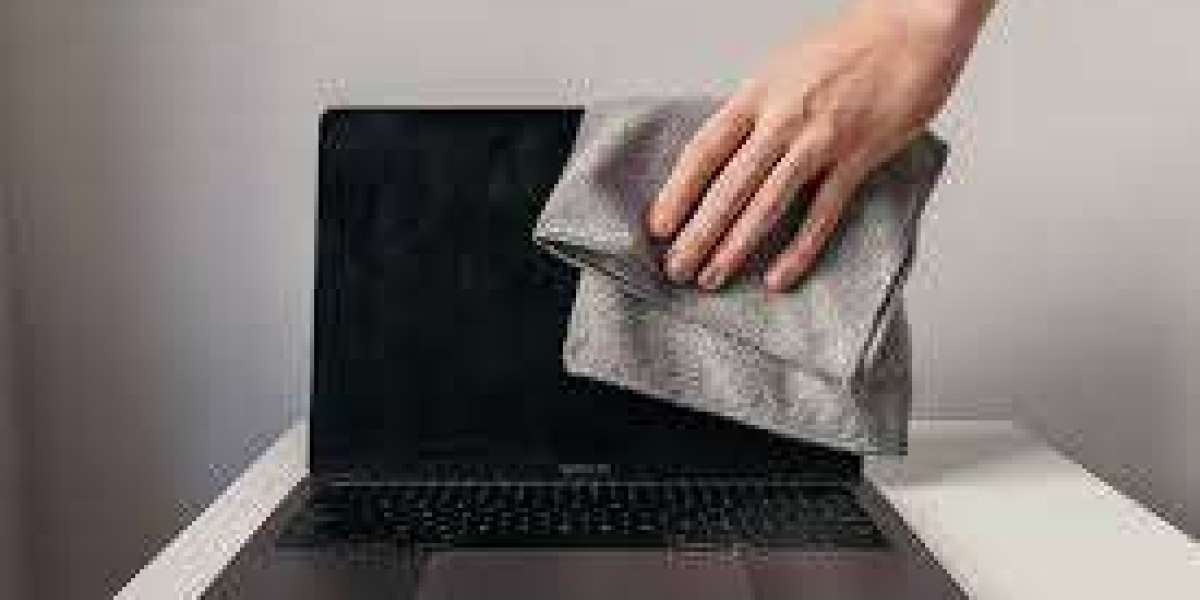

Keeping your laptop screen clean is essential for both visibility and longevity. If you own a Apple MacBook, maintaining its display properly ensures a better viewing experience and prevents long-term damage. In this guide, we will explain how to clean macbook screen safely and effectively using the right methods and tools.
Why Cleaning Your MacBook Screen Matters
A dirty screen not only looks unattractive but can also affect your productivity. Dust, fingerprints, and smudges can reduce clarity and strain your eyes.
Impact on Display Quality
Over time, accumulated dirt can make your screen appear dull and less vibrant. Regular cleaning helps preserve the original brightness and sharpness.
Hygiene and Maintenance
Your laptop is used daily, making it a hotspot for germs. Keeping it clean ensures better hygiene and extends the lifespan of your device.
Things You Need Before Cleaning
Before starting, it’s important to gather the correct materials. Using the wrong tools can damage your screen.
Recommended Cleaning Materials
Microfiber cloth (soft and lint-free)
Distilled water
Screen-safe cleaning solution (optional)
What to Avoid
Paper towels or rough cloths
Alcohol-based or ammonia cleaners
Excessive water or liquid sprays
Using improper materials can scratch or damage the delicate display coating.
Step-by-Step Guide on How to Clean MacBook Screen
Now let’s go through the proper process of how to clean macbook screen without causing harm.
Step 1: Turn Off Your Device
Always power off your MacBook and unplug it from any power source. This ensures safety and helps you see dirt more clearly.
Step 2: Use a Dry Microfiber Cloth
Gently wipe the screen in circular motions using a dry microfiber cloth. This removes loose dust and light smudges.
Step 3: Slightly Dampen the Cloth
If smudges remain, lightly dampen the cloth with distilled water. Never spray liquid directly onto the screen.
Step 4: Wipe Gently
Clean the screen with soft, even strokes. Avoid applying pressure, as this can damage the display.
Step 5: Let It Dry
Allow the screen to air dry completely before turning your device back on.
Common Mistakes to Avoid
While learning how to clean macbook screen, it’s equally important to know what not to do.
Using Excess Liquid
Too much moisture can seep into the edges and damage internal components.
Applying Too Much Pressure
Pressing hard on the screen can lead to pixel damage or screen distortion.
Using Harsh Chemicals
Chemical cleaners not designed for screens can strip protective coatings and cause permanent damage.
How Often Should You Clean Your Screen?
The frequency of cleaning depends on your usage.
Daily Users
If you use your MacBook daily, a light wipe every few days is recommended.
Occasional Users
For less frequent use, cleaning once every one to two weeks should be sufficient.
Regular maintenance prevents buildup and keeps your screen looking new.
Additional Tips for Screen Care
Taking care of your screen goes beyond just cleaning.
Keep Your Hands Clean
Clean hands reduce the transfer of oils and dirt to your screen.
Avoid Touching the Screen
Try not to touch the display unnecessarily, as fingerprints are a major cause of smudges.
Store Properly
Close your laptop carefully and avoid placing objects on the keyboard that could press against the screen.
Conclusion
Understanding how to clean macbook screen properly is essential for maintaining both the appearance and performance of your device. By using the right tools, following safe techniques, and avoiding common mistakes, you can keep your screen spotless and long-lasting. Regular care not only enhances your viewing experience but also protects your investment in the long run.