
In today’s digital world, the ability to accept payments seamlessly is essential for any business. Whether you are running a retail store, a café, or a larger business, ensuring that your payment system works efficiently and securely is crucial. A smooth payment experience not only helps in maintaining customer satisfaction but also contributes to the overall success of your business.
The right payment terminal can make a huge difference. One such device is the Ingenico Desk 5000, a reliable and feature-packed payment terminal that allows businesses to process payments quickly and securely. In this article, we will explore how to set up, optimize, and ensure seamless payment processing using this terminal.
What is the Ingenico Desk 5000?
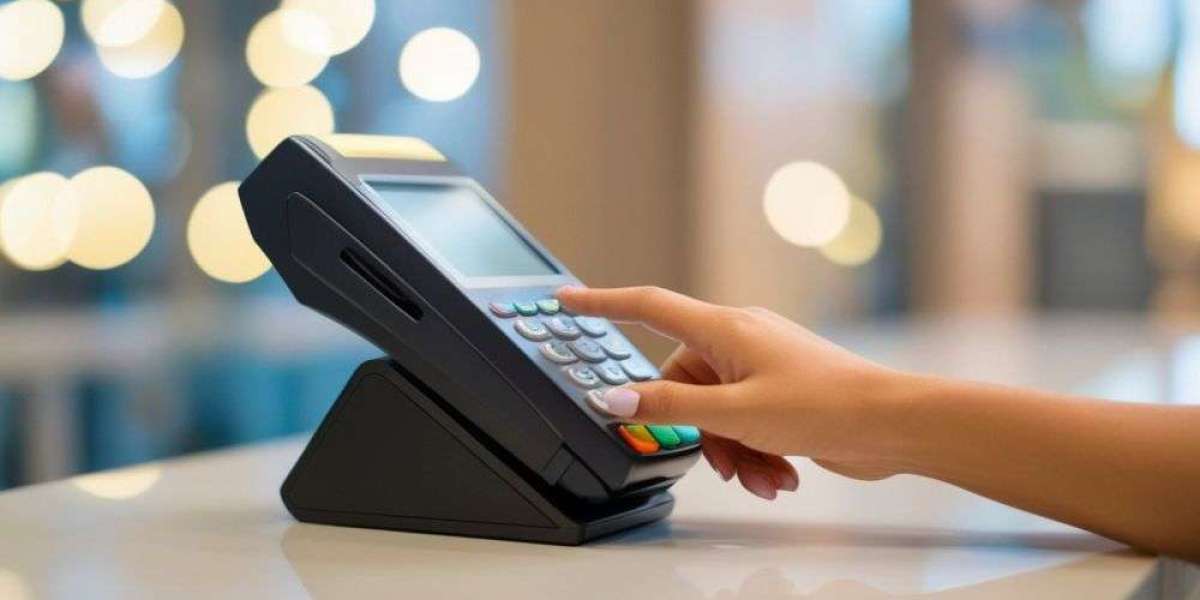
The Ingenico Desk 5000 is a modern, multi-purpose payment terminal designed to accept a wide variety of payment methods. Whether your customers prefer to pay via credit or debit cards, mobile wallets, or contactless methods, this terminal supports all. It’s designed for ease of use, with a color touchscreen and intuitive interface that makes the payment process simple for both customers and staff.
The terminal is known for its flexibility, offering multiple connectivity options like Ethernet, Wi-Fi, and 4G. This ensures that no matter where your business is located, you can always have a reliable connection for processing payments. Security is also a top priority with this device, as it complies with industry standards to protect sensitive customer data during transactions.
Key Features That Ensure Seamless Payment Processing
The Ingenico Desk 5000 has several features that make it an excellent choice for businesses of all sizes. Here are some of the key features that enable it to provide a smooth payment experience:
Multiple Payment Options
The Ingenico Desk 5000 supports various payment methods, including chip cards, magnetic stripe cards, and contactless payments like Apple Pay and Google Pay. This flexibility allows you to serve a wider range of customers, enhancing their experience.
Fast and Reliable Connectivity
Whether you choose to use a wired connection, Wi-Fi, or 4G, the Ingenico Desk 5000 offers reliable connectivity. This means that you can process payments quickly, even during peak hours, reducing wait times and improving overall customer satisfaction.
Easy-to-Use Interface
The user-friendly touchscreen interface simplifies the transaction process for both employees and customers. It’s easy to navigate, and the on-screen instructions make the payment process clear and efficient.
Strong Security Features
With advanced encryption and compliance with PCI standards, the Ingenico Desk 5000 ensures that all payment data is processed securely. It uses the latest technologies to protect sensitive customer information from any potential threats.
Preparing for Installation
Before setting up the Ingenico Desk 5000, it’s important to prepare your space and ensure that you have everything needed for installation. Make sure you have access to a power source and that your network (whether Ethernet or Wi-Fi) is stable and fast enough to support payment processing.
You should also gather the necessary credentials, such as your merchant account details, to link the terminal to your payment processor. Preparing these in advance can help streamline the setup process.
Setting Up the Ingenico Desk 5000
Once you have everything ready, follow these steps to set up your Ingenico Desk 5000.
Step 1: Unbox and Power Up
Start by unpacking the device carefully and connecting it to the power source. The terminal should power up automatically once plugged in.
Step 2: Choose Your Connectivity Option
You can either use a wired Ethernet connection or set up Wi-Fi. To connect via Wi-Fi, simply select your network from the terminal’s menu and input your credentials. Ensure that the Wi-Fi signal is strong enough to avoid any connectivity issues.
Step 3: Install Necessary Software
The Ingenico Desk 5000 requires payment software to process transactions. Depending on your payment service provider, you may need to download and install specific software onto the terminal. This may include security patches and firmware updates, which are essential for ensuring the terminal operates smoothly.
Step 4: Enter Merchant Information
Next, you will need to input your merchant account details into the terminal. These details are provided by your payment service provider and are necessary to link your terminal to your processing system.
Step 5: Test the System
Before going live with actual transactions, run a few test payments to make sure everything is working as expected. This helps to ensure that the terminal is processing payments correctly, and you can spot any potential issues early.
Connectivity and Software Integration
A strong and stable internet connection is key to processing payments without interruptions. The Ingenico Desk 5000 allows you to choose between Ethernet, Wi-Fi, or 4G connectivity, so you can select the best option based on your business needs.
If you're using a Point of Sale (POS) system, ensure that your payment terminal is properly integrated with it. Integration helps streamline the transaction process by automatically syncing sales data, inventory, and customer information, reducing manual input and minimizing errors.
For businesses using a POS system, make sure the software is compatible with the Ingenico Desk 5000. Most systems should work seamlessly with the terminal, but it’s always a good idea to double-check compatibility before making a purchase. If needed, you can contact your POS provider to ensure that integration goes smoothly.
Security Best Practices
Ensuring the security of your payment system is critical to protecting your business and customers. The Ingenico Desk 5000 comes with built-in security features like end-to-end encryption and compliance with the Payment Card Industry Data Security Standard (PCI DSS). However, to fully protect your business, you should also take the following steps:
Install Software Updates: Regular updates from the manufacturer help keep the terminal secure and improve its functionality.
Use Secure Connections: Always use secure network connections, such as encrypted Wi-Fi or Ethernet, to prevent unauthorized access to your system.
Train Your Staff: Teach your employees how to recognize and report suspicious activity. They should also be familiar with the procedures for handling sensitive customer data.
Limit Access: Only authorized staff should have access to the payment terminal’s settings and configuration options.
By following these steps, you can ensure that your payment system is secure and your customers’ information is protected.
Troubleshooting and Common Problems
While the Ingenico Desk 5000 is a reliable and well-designed terminal, issues can sometimes arise. Here are some common problems you might encounter and how to resolve them:
Connectivity Issues
If you experience connection drops or slow payment processing, check the strength of your internet connection. If you are using Wi-Fi, try moving the terminal closer to the router or using a wired Ethernet connection for better stability.
Slow Transactions
If transactions are taking too long to process, make sure that your internet connection is fast enough to handle payment processing. You may also want to check for any system updates that could improve performance.
Contactless Payment Problems
If contactless payments are not working correctly, check the NFC reader on the terminal to ensure it's clean and free from obstructions. Also, ensure that the payment method being used is supported by the terminal.
Printer Issues
Sometimes, the receipt printer may fail to print or get stuck. Check the paper supply and ensure that the printer is correctly connected. If the problem persists, check for any available updates or perform a reset.
Optimizing Payment Processing
To ensure smooth and fast payment processing, there are a few things you can do to optimize your setup:
Ensure Fast Internet: A strong and fast internet connection is essential for quick payment processing. If possible, use a wired connection to ensure stability.
Automate Receipt Delivery: Instead of printing receipts, consider sending digital receipts via email or SMS. This speeds up the transaction process and reduces paper waste.
Encourage Contactless Payments: Contactless payments are generally faster than traditional chip or magnetic stripe payments. Encourage customers to use mobile wallets or contactless cards to speed up the checkout process.
Regular System Checks: Perform regular system checks to ensure that the terminal is functioning properly and that all software updates are applied promptly.
Final Thoughts
Seamless payment processing is essential for delivering an excellent customer experience. The Ingenico Desk 5000 offers a variety of features to help your business process payments quickly, securely, and efficiently. By following the steps outlined in this article, you can ensure that your payment system is optimized for smooth and reliable operation.
With proper setup, security measures, and regular maintenance, your Ingenico Desk 5000 terminal will provide reliable service for years to come, ensuring a smooth payment experience for your business and customers alike.